
Measuring & 360° photos
Measure distances, heights, areas, angles and diameters on the point cloud, and step into the 360° photo of every scanner position.
Measuring tools
- Distance – two points; the table lists the length and its X, Y and Z components.
- Height – the vertical distance from a point to a level.
- Point info – coordinates of a point.
- Diameter, Area and Angle – for pipes, surfaces and corners.
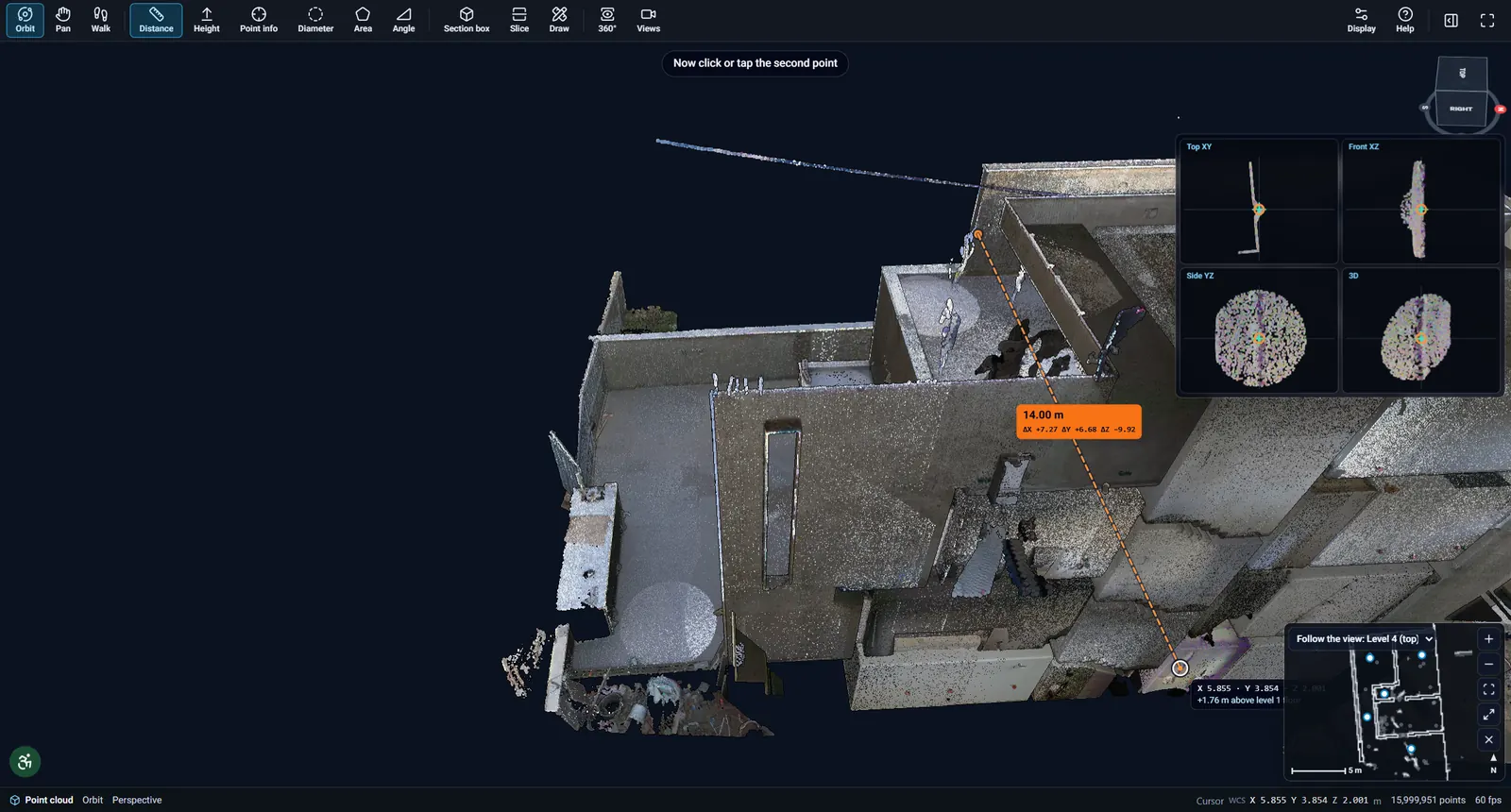
While you pick, small helper views (top, front, side and 3D) show the point from other angles so you land on the right surface. Hold Shift to lock the second point to an axis, turn on Snap to planes and edges for corners, and choose metres, centimetres or millimetres.
360° photos
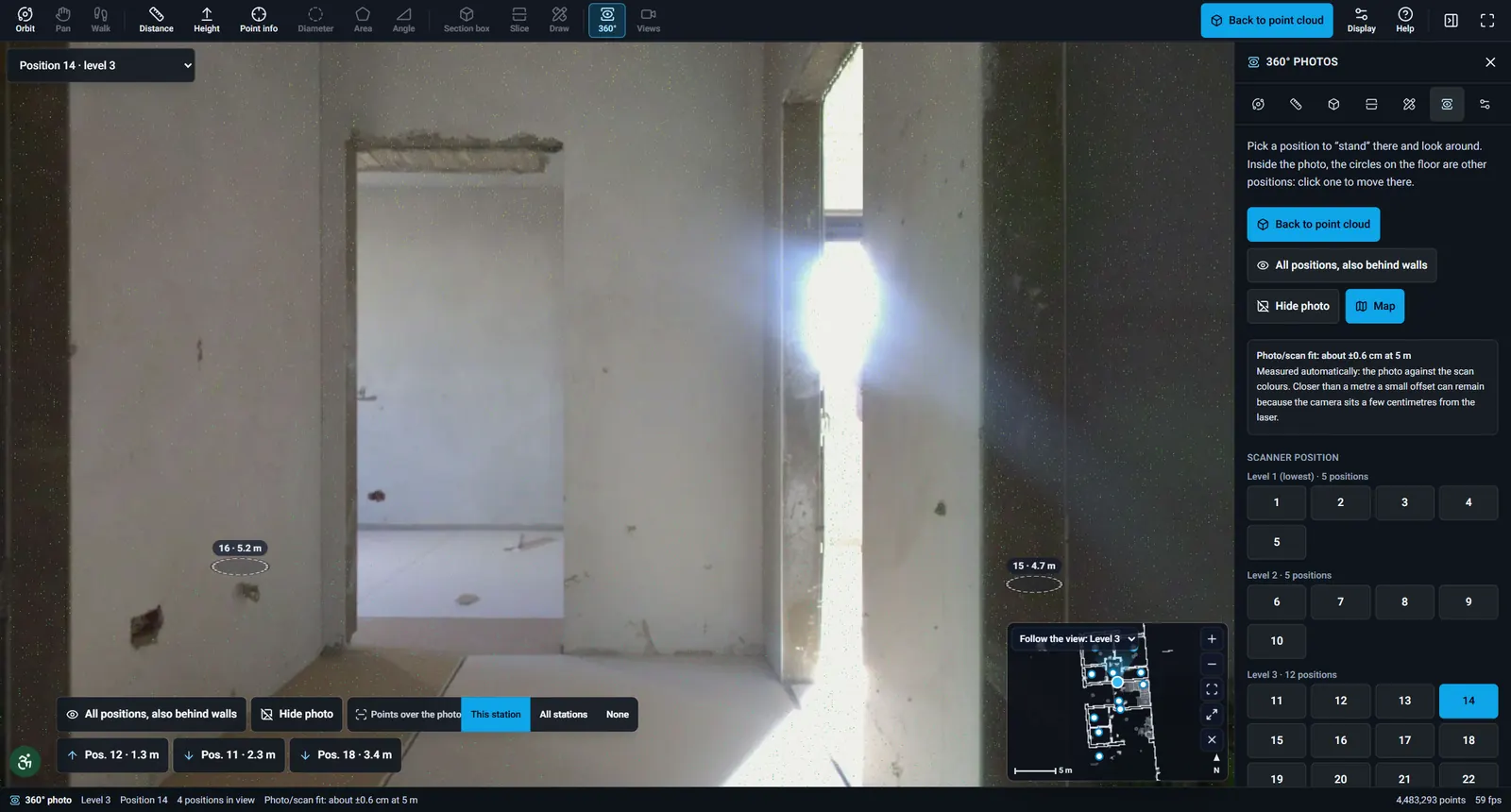
Choose 360° in the toolbar and pick a scanner position from the list or from the model. You stand where the scanner stood and look around in the panorama. Circles on the floor are other positions – click one to move there. The mini-map shows where you are.
Keyboard: 1–4 switch to top, front, right and 3D views, Z frames the measured points, ? lists every shortcut.
→Annotations